This guide is a work in progress and is frequently changing. Please be patient while the page is filled in with more information. If you find something that is not on this page but should be, please be kind enough to leave a comment or conact me at hickey@kinetic-compute.com to let me know.
The two most important settings when configurating a companion is the node name and the radio settings. There are other settings that are recommended to be configured and are detailed below.
Node name setting
The node name is what other MeshCore nodes list in their contact list for the node. It needs to be unique on the network and consists of up to 31 characters. If you will be using location reports in the node’s adverts, then the maximum number of characters that will be transmitted in the advert is 23 characters.
The node name should be descriptive but also of reasonable length. Much of the time MeshCore users are ham radio operators so many times you will see a call sign as part of the node name. Others will use a nick name or some other identifying terms.
Radio settings
The radio settings are critical to allow the node to communicate with other nodes over the network. When setting up your companion, you can use the “USA/Canada” presets to configure the radio. The table below shows the settings for the preset.
| Setting | Value |
|---|---|
| Frequency | 910.525 MHz |
| Bandwidth | 62.5 KHz |
| Spreading Factor | 7 |
| Coding Rate | 5 |
The coding rate is the only value that can be changed and still allow the node to communicate on the network. This setting configures how much error correction should be used in the messages transmitted by the companion. The values range from 5 to 8 with 5 being the least amount of error correction.
If you believe that you have a weak signal or have some local interference on the 900 MHz band, then it may be adventitious to increase the coding rate 1 or 2 levels. Keep in mind that increasing the coding rate increases transmission time and decreases the amount of messages that can be sent by all nodes in the area (because the companion is using more airtime, there can be less airtime for other nodes to transmit messages) so only increase the coding rate if it is really necessary.
Location reporting
Many of the companions available have a GPS module that allows the companion to determine its location. If you have a companion that does not have a GPS, then you can skip this section unless your companion does not move and you want to set a static location for the companion. If you are not interested in advertising your position on the MeshCore network, then there is no need to set a static location or enable the GPS and can move on to the notification settings.
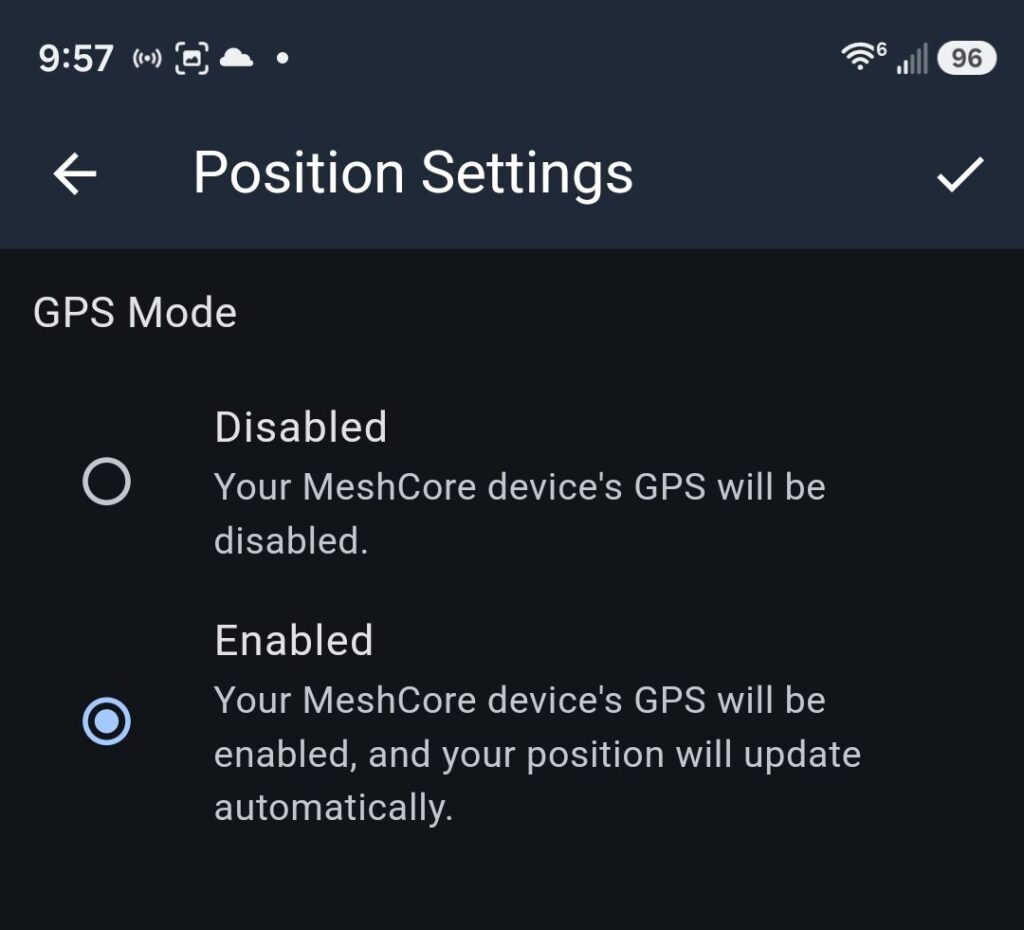
The companion device will automatically detect the GPS if it is available, but it must still be enabled in the settings. Go to the Position Settings in the companions settings to enable it. Make sure to click the checkmark in the upper right corner to ensure that the setting gets saved. Once this is done, the companion should start to show the coordinates on the main settings page–although if the companion has recently been turned on it may take a minute or two for the GPS to receive enough signal to calculate the position.
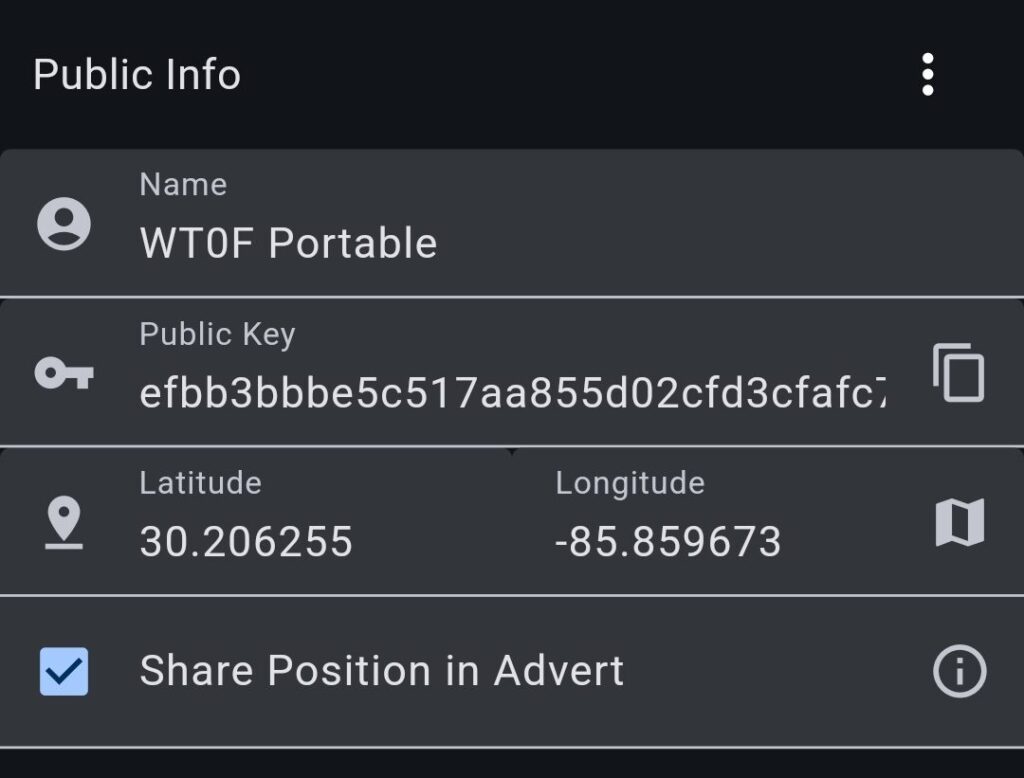
That is just half the settings. Now that the GPS is enabled, the companion needs to be instructed to include the position in an advert. If you are not sure what an advert is or how to use them, then please refer to What are these advert thingies? On the main settings screen just below the GPS coordinates there is a check box for including the GPS position in the adverts. Just enable it and you are all set.
One thing to keep in mind is that companions do not advert on their own or on a schedule like a repeater or room server. You need to manually advert on the companion. This is partly to keep the traffic levels on the MeshCore network lower as having a lot of companion nodes on the network could provide a significant amount of traffic. The What are these advert thingies? can give you some ideas as to when you may want to advert with a companion node.
Notification settings
Region Codes
Region codes are one of the more advanced topics, but it is an important one. By default messages sent in a channel use the default region code (usually shown as *) and repeaters by default have he default region code set to allow flooding. This means that when you send a channel message it will be sent through the entire MeshCore network until the maximum number of hops for the message has been reached. Please see path hash size setting to understand what the maximum number of hops your message can have.
Region codes are generally based on a location (but not always) to keep the message from traversing the entire network. Different channels can use different region codes. The following table provides a number of region codes that are used in the DAB Meshmapper region. Other Meshmapper regions may have other region codes and you should ask around to determine what region codes are used in your area.
| Region Code | Description / Used For |
|---|---|
dab | Use for the DAB Meshmapper region. Currently this is principally Volusia and Flagler counties. Meshmapper administrative regions can be seen at https://meshmapper.net/?onboarding |
volusia | Repeaters in Volusia county use the volusia region code to restrict messages to repeat within the county. |
deland | This is a region code to keep messages in the city of DeLand. |
fl | Reserved for future use to keep messages in the state. |
This may not be an exhaustive list. It is best to ask in a region if there are region codes that you should be using. You can also discover what region codes are available on your local repeater(s).
Path hash size setting
This is also a bit of a more advanced topic. Setting the proper path hash size provides more details on where your messages have come from and helps reduce the amount of traffic on the MeshCore network. This setting can be set to 1, 2 or 3 bytes.
The default when the firmware is loaded is to use 1-byte hashes (although the latest versions of firmware now sets 2-byte hashes) which allows at most 254 repeater IDs before there is a collision. Collisions–just like a collision in your car are not a good thing–can cause traffic to be duplicated and sent into routing loops on the network. This consumes airtime and reduces the amount of messages that the network can support. In actuality it usually takes about 10-20 repeaters on the network to start to have ID collisions. Now take a network that has a couple of hundred repeaters….you get the idea.
To keep the network working more efficiently the MeshCore protocol allows repeaters to be identified by up to 3 bytes in the routing information. In most applications the companion set to 2-byte path hashes is sufficient to keep the network traffic manageable.
All that needs to be done on the companion is to go into the settings and change the 1-byte to 2-byte. The procedure differs slightly depending on the version of the companion app. For companion apps prior to v1.50.0 you need to go into the Experimental Settings to find the path hash size. For app versions v1.50.0 or greater you will find the path hash size on the main settings screen under Network Settings.
The following table gives the protocol specifications for the trade-off of each path hash size.
| Path hash size | Max nodes before collision | Max number of hops |
|---|---|---|
| 1 byte | 254 | 64 |
| 2 byte | 65,536 | 32 |
| 3 byte | 16,777,216 | 21 |
If you want to know more details on how this works and some of the technical details, please see The Need for Multibyte Pathing and Why Set Repeaters Up with Multibyte?
If you also operate a repeater, you may want to visit the recommended repeater settings page.