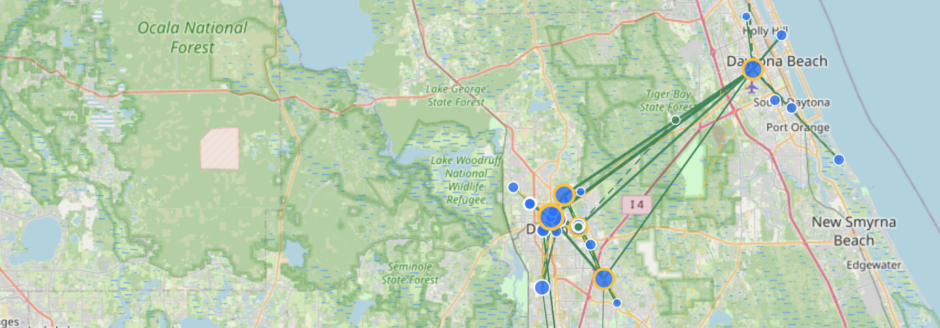
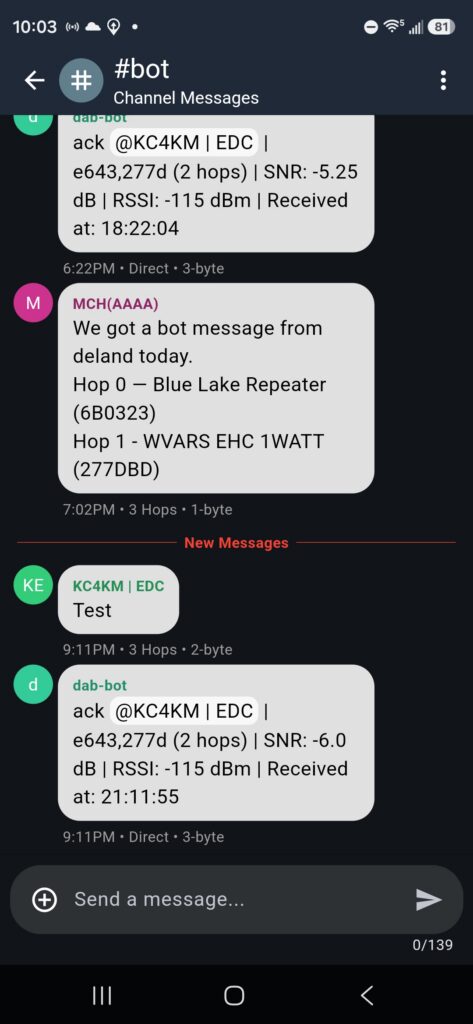
In a simple definition, bots are a software program that respond to commands sent over a MeshCore channel or respond to an event. In many cases this would be some one sending a specific command such as ping or test. In other cases it may be the bot is passively listening on the channel for specific keywords that may be in a message someone says. For example, one may say “Hey there, John” and the bot would see the greeting and add its own snarky response like “Guten tag neural network user! I’m dab-bot.”
Bots can become annoying if they are too intrusive or added to channels that they really should not be in; say like the Public channel. It can be a bit of a fine grained challenge to expose the bot enough without over saturating the network. But when done well the bot can provide good information and even some entertainment to the MeshCore network.
There are a couple of flavors of code out there but the most proliferant is the meshcore-bot distribution. This is the software that dab-bot runs here in north central Florida and can be found in #bot and #test.
OK, that is nice to know, but how do I talk to the bot?
That is quite easy. Just go to the #bot channel and type a command into the channel.
But I don’t know what the commands are!
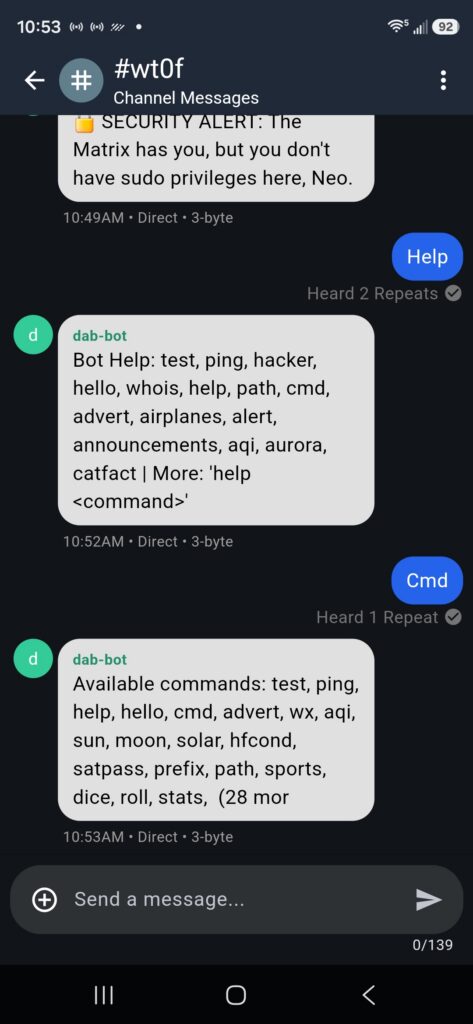
Ah…. Let’s start with a couple basic commands and you should look at https://cascadiamesh.org/bot-commands/ where there is a much better description of the available commands.
Two commands you can use to learn of other commands is help and cmd (also has the cmds, command and commands alaises). These two commands will display a bunch of commands, but not all the commands. This has a lot to do with not wanting to saturate the MeshCore network with a lot of messages and take away from other users sending messages on the network.
So already you are starting to increase the your knowledge of the commands that the bot will respond to. So head over to #bot and give a few of them a try.
Give ping a try and the bot should respond with “pong”. This is useful if you are an area that you are not sure has coverage and you want to see if you can get a message out. Sure you could throw a message in Public to see if anyone responds, but there are times that no one is around or able to respond. At that point how would you know if your message actually made it out or not. The bot is always present and will respond if it sees the message.
For fun, see what airplanes are currently overhead by sending the airplanes command. Or try wx (also weather also works) with your zip code to get the current forecast. Want to hear a joke, then just send joke. Now is the time to go exploring.
Custom Commands
Earlier I stated that most of the commands are documented at the cascadiamesh.org website, but not all. One of the things about the meshcore-bot code is that it makes it pretty easy to add new commands for local, custom commands.
dab-bot has two custom commands that have been added: whois and contact.
whois is used to look up a ham radio callsign. Just send a message such as whois wt0f.
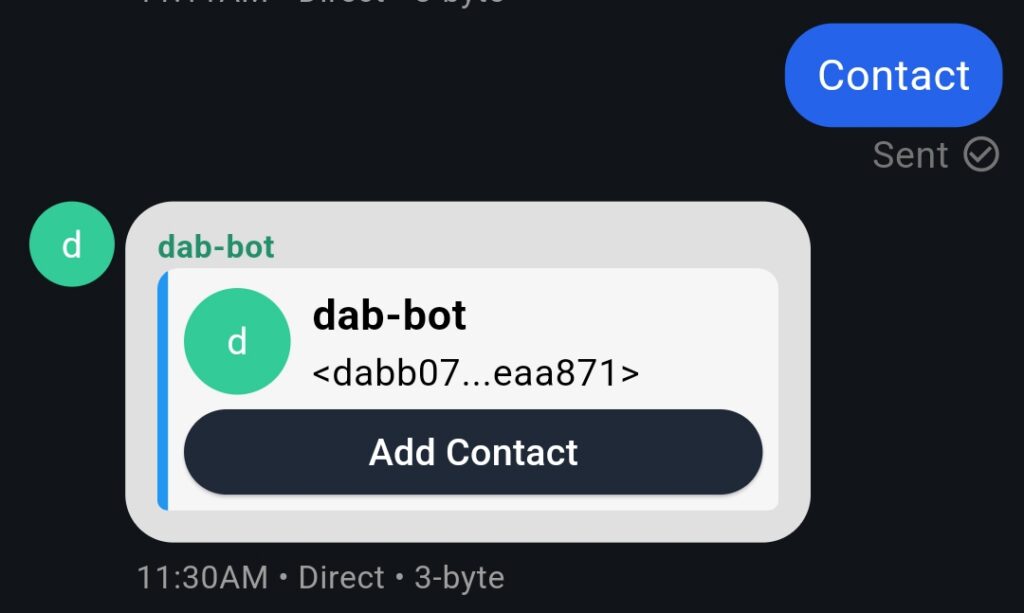
contact is used to produce a shareable contact bubble so that one can get the public key of dab-bot. This is useful as dab-bot does not normally send adverts so one has no real way to get the public key. Once you have the public key of dab-bot you can send direct messages to the bot. The bot also needs to have your public key also otherwise it can not read the messages sent to it directly. So send an advert to allow the bot to receive your public key.
Where You Can Help Out
Do you have an idea that you would like to see dab-bot implement? This does not have to be fancy–even the simplest ideas can be very useful. Do you know of a source of information that might be useful to expose on the MeshCore network? Maybe some sort of application that dab-bot can provide the users of the network. Like a checkin for who will be attending a lunch or tracking people’s deployment status. All it takes is one good idea to make dab-bot more useful.
Just drop a comment here with your idea and we can keep adding to dab-bot’s commands.